If you’ve ever registered multiple plugins in Dynamics 365 and wondered why they execute in a particular order or worse, why they sometimes seem to run unpredictably then you’re not alone. Understanding the plugin execution pipeline is crucial for building reliable, maintainable customizations in Dynamics 365.
There’s a clear logic to how Dynamics 365 decides which plugin runs first. Let’s break down the three key factors: Stage, Rank, and Depth.
The Plugin Execution Pipeline: A Quick Overview
When an operation occurs in Dynamics 365 (like creating or updating a record), the system processes that operation through a series of stages. Plugins are essentially code that hooks into these stages, allowing you to add custom business logic at specific points in the transaction.
The execution order of plugins is determined by three hierarchical factors, evaluated in this specific sequence:
- Stage (most important)
- Rank (secondary)
- Depth (least important, but critical for preventing infinite loops)
Let’s explore each one.
Stage: The Primary Determinant
Stage is the most important factor in determining plugin execution order. Dynamics 365 processes operations through four distinct stages:
Pre-validation (Stage 10):
Executes outside the main database transaction, before any security checks. Use this for operations that don’t require database access or when you need to run logic before security validation.
Pre-operation (Stage 20):
Executes inside the database transaction, after security checks but before the main operation. This is your go-to stage for modifying data before it’s saved or validating business rules with database access.
Main Operation (Stage 30):
This is where the core platform logic executes. You cannot register custom plugins at this stage—it’s reserved for Dynamics 365’s internal processing.
Post-operation (Stage 40):
Executes inside the database transaction, after the main operation completes. Perfect for operations that depend on the main operation’s results, like creating related records or triggering external integrations.
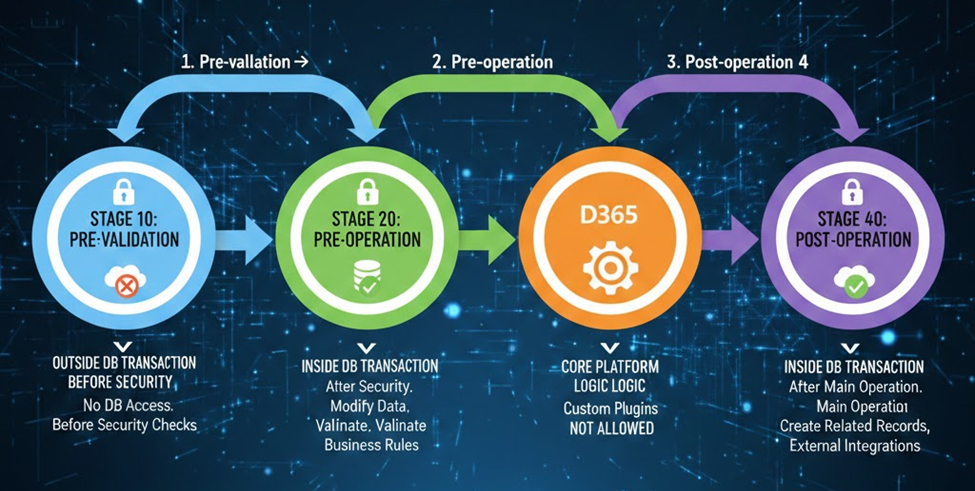
Dynamics 365 always processes stages in numerical order: 10, then 20, then 30, then 40. All plugins in stage 10 complete before any plugin in stage 20 begins, and so on.
Rank: The Tiebreaker
When multiple plugins are registered on the same stage for the same message and entity, Rank determines their execution order within that stage.
Rank is simply an integer value you assign when registering the plugin step. Plugins execute in ascending order—lower ranks run first. For example, a plugin with rank 1 executes before a plugin with rank 10, which executes before a plugin with rank 100.
This gives you fine-grained control over execution sequence. If you have validation logic that must run before transformation logic, simply assign the validation plugin a lower rank number.
Pro tip: Leave gaps in your rank numbering (10, 20, 30 instead of 1, 2, 3) to make it easier to insert new plugins in the future without renumbering everything.

Depth: The Infinite Loop Protector
Depth is less about deciding which plugin runs first and more about preventing infinite loops. When a plugin executes and triggers another operation (which in turn could trigger the same plugin again), the depth value increments.
The depth starts at 1 for the initial operation. If your plugin creates or updates a record that would trigger itself again, that second execution would have a depth of 2. By default, Dynamics 365 allows operations to recurse up to depth 8 before throwing an error.
You can check the current depth in your plugin code using the execution context’s Depth property. This allows you to implement logic like “only run this code if depth equals 1” to prevent recursive execution.
Understanding depth is critical when your plugins modify the same entity they’re registered on or when you have complex chains of plugins that might trigger each other.

Putting It All Together: A Practical Example
Imagine you’re building an opportunity management system with these requirements:
- Validate that the estimated close date isn’t in the past (Pre-operation, Rank 10)
- Calculate the weighted revenue based on probability (Pre-operation, Rank 20)
- Update the account’s total pipeline value (Post-operation, Rank 10)
- Send a notification to the sales manager for large opportunities (Post-operation, Rank 20)
Here’s how Dynamics 365 would execute these plugins when an opportunity is created:
First, both pre-operation plugins execute in rank order: date validation (rank 10), then revenue calculation (rank 20). Then the main operation saves the opportunity. Finally, both post-operation plugins execute: update account pipeline (rank 10), then send notification (rank 20).
If the account pipeline update plugin triggers an update on the account record that somehow affects the opportunity again, the depth would increment to 2 for that secondary operation.
Best Practices for Managing Plugin Execution Order
Be intentional about stage selection. Use pre-operation for data modification and validation, post-operation for operations dependent on saved data.
Use rank strategically. Group related plugins with similar rank ranges (validation plugins in 1-10, business logic in 11-20, integration in 21-30).
Always handle depth in recursive scenarios. Check the depth property and implement appropriate guards to prevent infinite loops.
Document your execution order. Maintain a spreadsheet or diagram showing all plugins, their stages, and ranks for each entity.
Test thoroughly. Use the Plugin Registration Tool’s profiler to observe actual execution order and timing in your specific environment.
Common Pitfalls to Avoid
Registering all plugins at the same rank makes execution order unpredictable when you add new plugins. Always assign meaningful ranks from the start.
Forgetting about depth when plugins modify their own entity type leads to mysterious “Maximum depth exceeded” errors in production.
Using post-operation when pre-operation is more appropriate can cause issues if validation fails after your plugin has already executed side effects.
Conclusion
Understanding how Dynamics 365 determines plugin execution order through Stage, Rank, and Depth transforms plugin development from guesswork into predictable, maintainable customizations. Stage provides the broad framework, rank gives you fine control, and depth prevents chaos.
Read more : load testing power apps with k6 for dynamics 365
FAQ’s
Plugin execution is determined by Stage, Rank, and Depth, in that order.
Stage defines when a plugin runs during the operation—pre-validation, pre-operation, main operation, or post-operation.
Rank controls the sequence of plugins within the same stage—lower rank numbers execute first.
Depth tracks recursive calls to prevent infinite loops, incrementing each time a plugin triggers itself indirectly.
 is a software solution company that was established in 2016. Our quality services begin with experience and end with dedication. Our directors have more than 15 years of IT experience to handle various projects successfully. Our dedicated teams are available to help our clients streamline their business processes, enhance their customer support, automate their day-to-day tasks, and provide software solutions tailored to their specific needs. We are experts in Dynamics 365 and Power Platform services, whether you need Dynamics 365 implementation, customization, integration, data migration, training, or ongoing support.